
AllImageAI
OpenAI official logoOpenAI · Flare & Sunburst

GPT Image 2.5
AI image generator
& photo editor

Create product photos, posters and game assets. Start with words, a photo or a sketch, then refine the image one change at a time.

From 1 credit / imageMedium photo edit · 3 credits
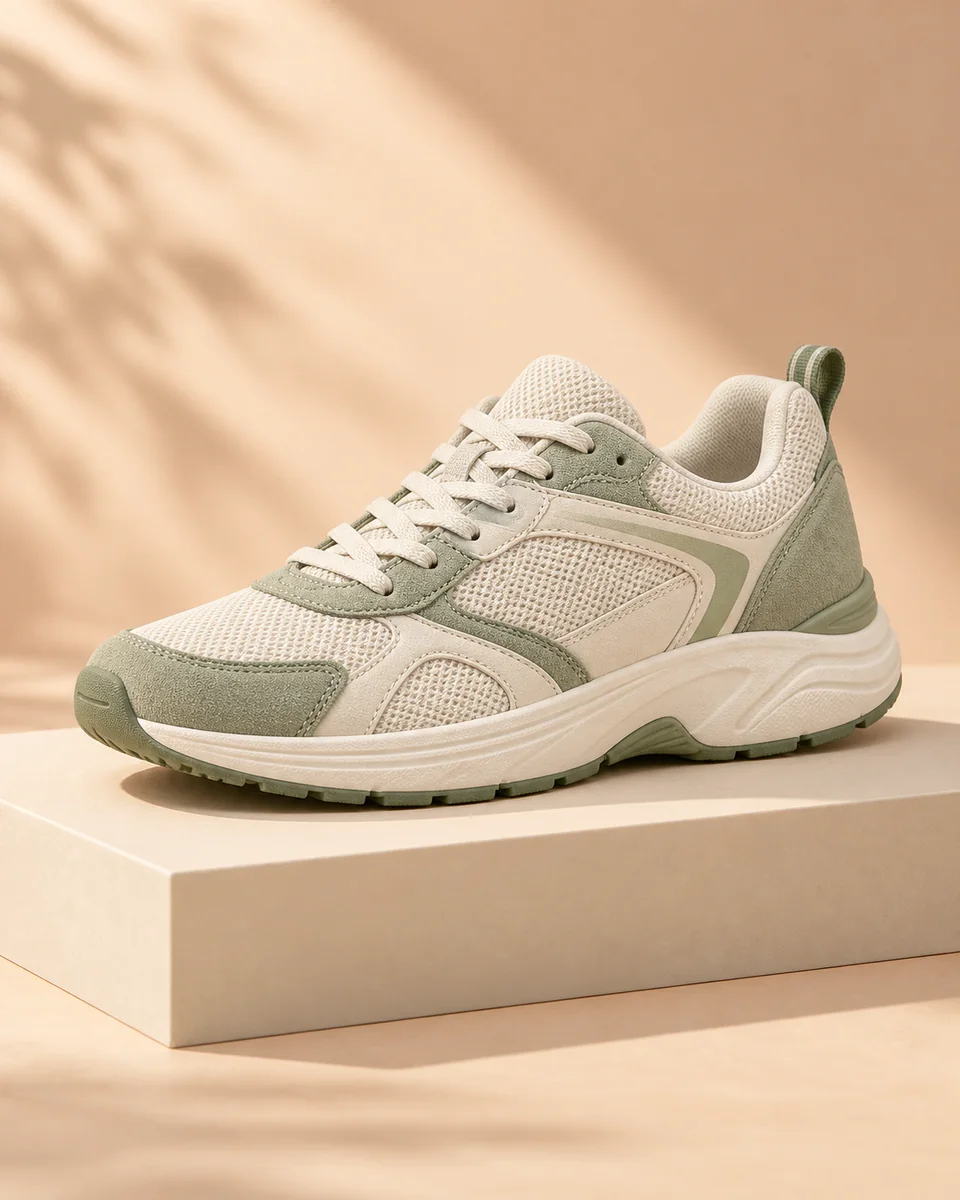
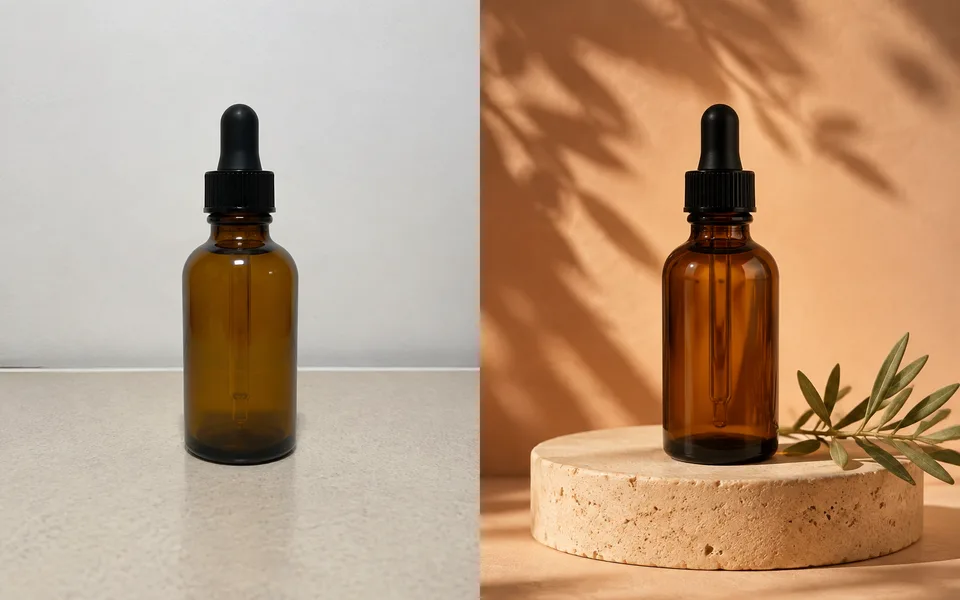
Product photo templatePhoto + prompt
A cream and sage sneaker photographed on a sculptural studio display

“Keep the shoe.
Give it a new setting.

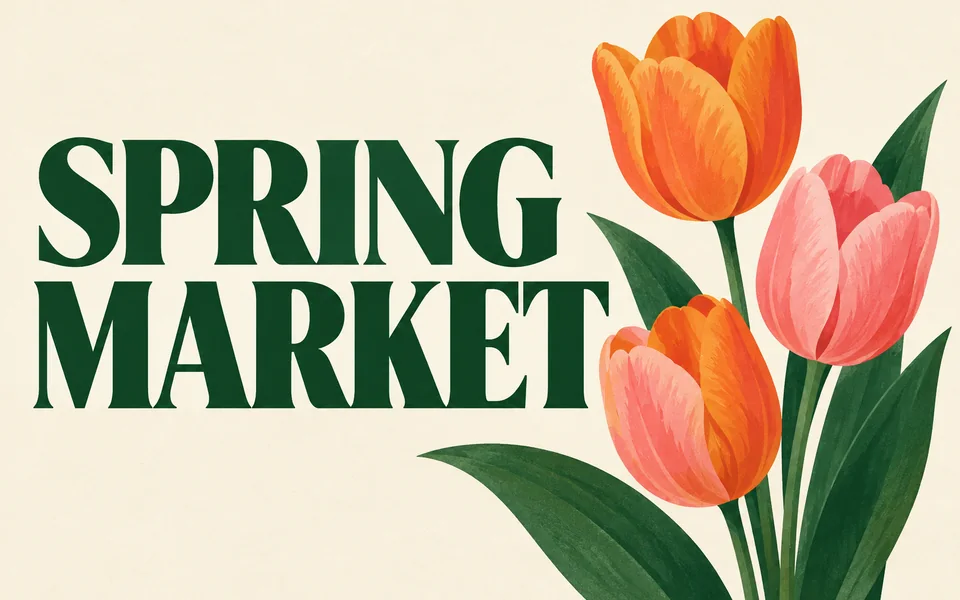
Spring Market poster template with botanical shapes and headline typography
Poster templateYour words. Your design.
Create · Edit · Refine

AI image templates for the things you make

Choose a task to load a starting prompt. Replace the details with your own.

Generate and edit with GPT Image 2.5

Your image history →

Model Version

Mode

0 / 4,000

Reference Images0/4

PNG, JPG or WebP · up to 4 images. Large photos are resized to 2048 px. Each reference adds 1 credit.

Output: 1K · 1:1 · one PNG

Quality changes the credit cost. Medium is a good starting point.

Output

GPT Image 2.5 Flare

Create product photos, posters and image assets with OpenAI’s faster Image 2.5 model.

FastUp to 4KRefs ×41:13:22:34:3

Try one of these prompts

GPT Image 2.5 Flare vs Sunburst

Two ways to balance speed and editing precision. The same clear credit prices.

OpenAIStart here

GPT Image 2.5 Flare

For everyday product photos, social posts and visual ideas. Choose Flare when you want to create and iterate quickly.

  • Faster everyday image creation
  • Text prompts and up to 4 reference images
  • 1K / 2K / 4K · 5 quality levels · PNG output
From 1 creditOpen Flare →
OpenAIPrecise edits

GPT Image 2.5 Sunburst

For demanding product edits and campaign artwork. Choose Sunburst when reference detail and control across changes matter most.

  • More precise reference-based editing
  • Text prompts and up to 4 reference images
  • 1K / 2K / 4K · 5 quality levels · PNG output
From 1 creditOpen Sunburst →

For focused edits, describe what should change and what should stay. Review the result: AI editing can also change surrounding details.

GPT Image 2.5 credit pricing

Flare and Sunburst use the same prices. Start with Medium for everyday images; increase quality when you need a more detailed final result.

One photo → one edited image2 + 1 = 3 credits

1K · Medium · 1 reference photo

View credit plans →
Credits for one generated image
Quality1K2K4K
Low123
High81323
Extra high142340
Maximum305083
+1 credit per reference image

Photo and sketch inputs count as references. Every new edit is a separate generation.

From your first idea to your next edit

Keep the original inputs and each result together in your image history.

  1. 01

    Start with a clear task

    Write a prompt, choose a template or draw a sketch. Upload a photo when you want to edit something you already have.

  2. 02

    Generate the first image

    Choose Flare or Sunburst, quality and size. The editor shows your total credit cost before you submit.

  3. 03

    Make the next change

    Use the result as a reference and describe your next edit. Reopen History to restore the original photos and settings.

GPT Image 2.5 questions, answered

What is GPT Image 2.5?

GPT Image 2.5 is OpenAI’s image generation and editing family, released alongside ChatGPT Images 2.5. Its API offers two models: Flare for faster everyday creation and Sunburst for demanding image editing. Both accept text and reference images and produce images.

Should I choose Flare or Sunburst?

Start with Flare for product photos, social graphics and visual drafts. Choose Sunburst when preserving reference details and controlling successive edits matter most. Both models have the same quality settings and credit prices on All Image AI.

How many credits does GPT Image 2.5 use?

A 1K draft costs 1 credit. Medium quality costs 2 credits at 1K, 4 at 2K and 6 at 4K. Each uploaded reference adds 1 credit, so a 1K Medium edit using one photo costs 3 credits. Higher quality levels are listed in the pricing table; each new edit is a separate request.

Can I turn a sketch into an image?

Yes. Open the sketchpad, draw with your mouse or finger, and add your sketch as a reference. Describe the finished style in the prompt and generate. You can also upload a drawing. A sketch is one reference image and has the same reference-image credit cost.

Can I create stickers, icons and game assets?

Yes. Choose the Icon & game asset template and describe a single subject on a plain background. The result is a PNG. For a transparent cutout, use the Background Remover tool on the finished image.

Can I keep editing the same photo?

Yes. Use a generated result as the reference for your next edit, then describe the next change. History keeps the original inputs, prompt, settings and result so you can retry or continue later. All edits are AI generated and can affect details outside the area you describe.

Which image sizes and uploads are supported here?

This workspace offers one PNG per request at 1K, 2K or 4K, with square, landscape and portrait formats. Choose from 15 square, portrait, landscape and panoramic aspect ratios. Upload up to four PNG, JPG or WebP files, each up to 20 MB before processing. The browser converts references to PNG or JPEG and resizes them to at most 2048 pixels per edge; each processed file must be 8 MB or smaller.

Is this the same interface as ChatGPT Images?

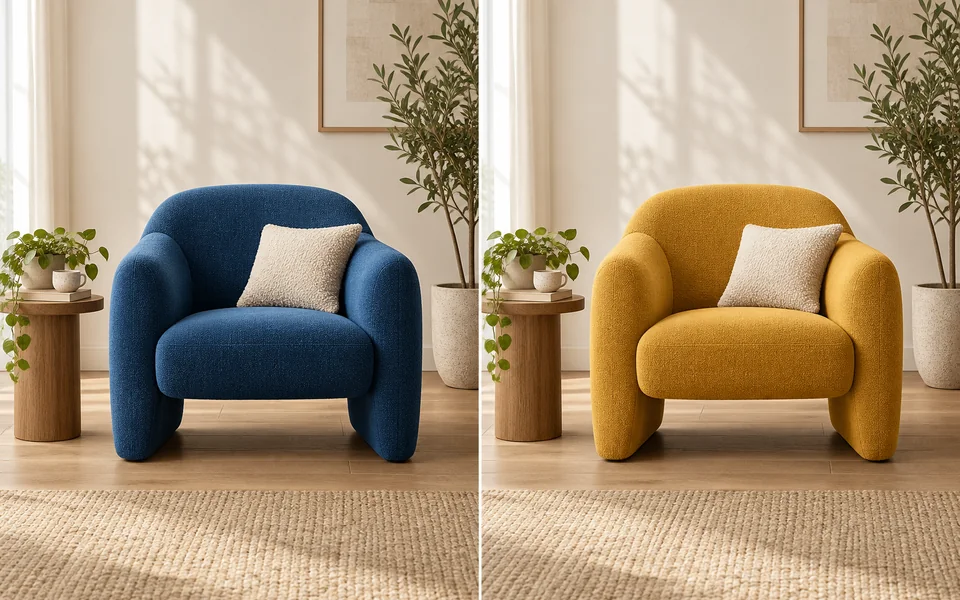
All Image AI offers the Flare and Sunburst models in its own workspace. The templates and sketchpad here belong to this workspace; ChatGPT’s native comment editing, @Sketch and prompt-sharing interface are separate features. The template previews on this page illustrate the tasks and are not benchmarks of Flare or Sunburst.