Redesign Your Room from a Photo
Upload your space and explore a new interior style.
Use a clear, well-lit photo showing the whole space.
JPG, PNG or WebP · up to 8 MB
Add a photo to get started.
One photo per try. Review your result before using it. How your photos are handled
Example: Warm modern
AI illustration · not your result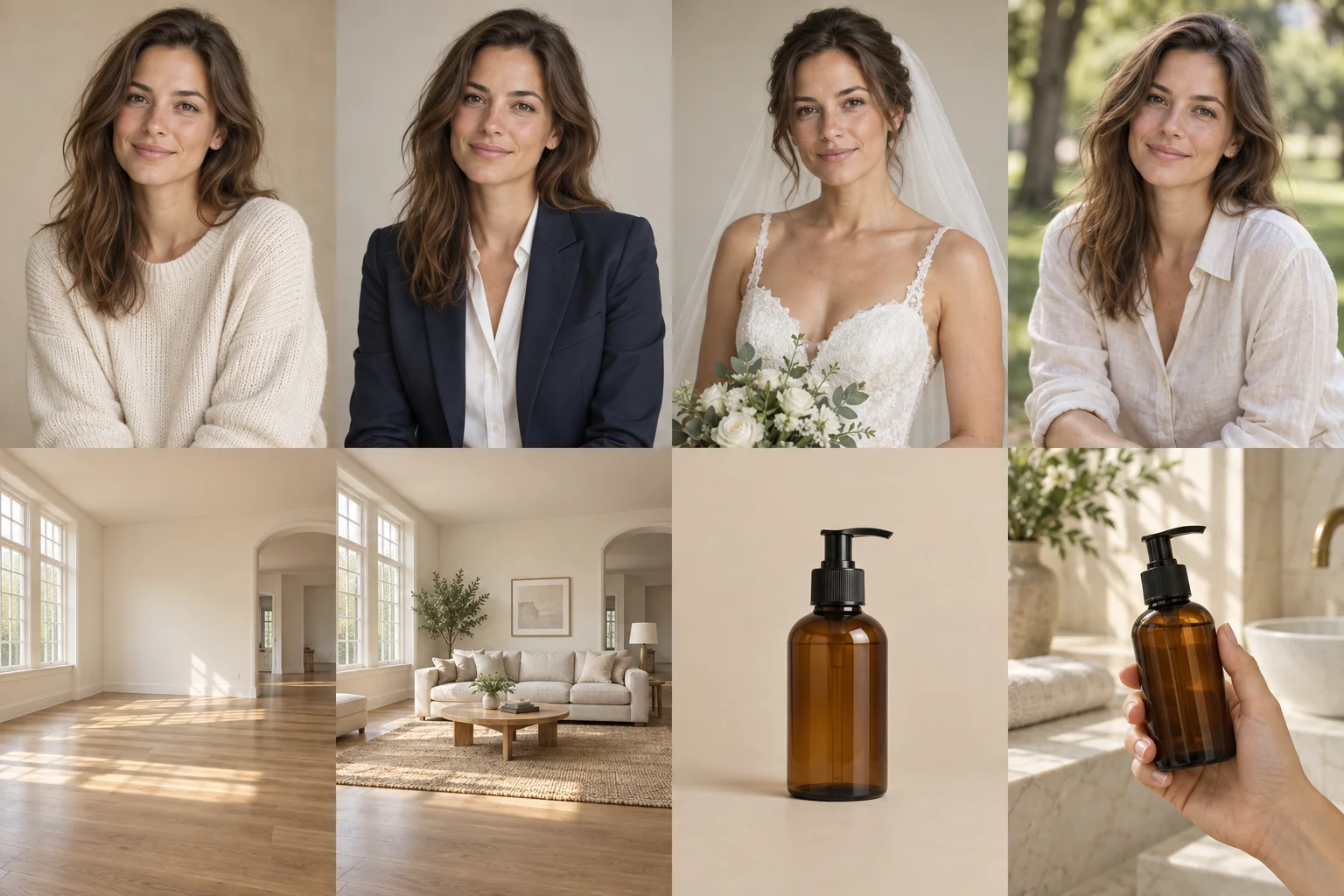
Upload your space and explore a new interior style.
A visual design concept. Check dimensions, materials and feasibility before making changes.
Your generated result will appear here.
How to use AI Room Redesign
- Use a clear, well-lit photo showing the whole space.
- Choose a room style: Warm modern, Japandi, Scandinavian, Industrial.
- Select “Transform my space”, then compare and download your result.
Photo Requirements & Tips
Use a clear, well-lit photo showing the whole space.
A visual design concept. Check dimensions, materials and feasibility before making changes.
Your upload is processed by our image service. Your creations stay in your account history and are not added to the public gallery.
Related Photo Tools
Frequently Asked Questions
What photo works best for AI Room Redesign?+
Use a clear, well-lit photo showing the whole space.
Which effects can I try with AI Room Redesign?+
Warm modern: Oak · cream · clean lines. Japandi: Natural · calm · minimal. Scandinavian: Light · simple · cozy. Industrial: Metal · leather · texture.
Do I need to write instructions or choose an AI model?+
No. Pick the effect you want and we prepare the edit. The button shows the credit cost before you start. Each new effect is a separate generation.
What should I check in the result?+
A visual design concept. Check dimensions, materials and feasibility before making changes.